Live timing for everyone: track systems, phones and loggers on one board
Outlap's live timing now takes laps from MyLaps and AxWare, from drivers' phones, and from VBOX, AiM and RaceChrono logs, all onto a single event board. Here's how it fits together and how to use it.
A track day usually has more timing than anyone realises. The circuit might have transponder loops feeding a MyLaps box. Half the grid has a phone on the dash or a VBOX under the seat. A marshal is standing at the line with a stopwatch. Every one of those produces lap times, and until now none of them ended up in the same place.
This update is about putting them in the same place. Whatever timing you already have, it can feed one live board that drivers, spectators and organisers all look at. Here’s what changed, how it works, and how to set it up whichever seat you’re in.
The short version
- Race Control is a page now, not a popup. It’s at
/race-control/<event>, built to work on a phone as well as a laptop. - Track timing connects through a small bridge. MyLaps Orbits, Trackside/X2, AxWare and any RMonitor relay stream laps, order and flags live.
- Drivers’ phones put laps on the board. Outlap’s own GPS lap timer sends laps to the event as they’re set, and the organiser decides whether they count straight away.
- Data loggers import. VBOX, AiM, RaceChrono, TrackAddict, GPX and plain lap lists are timed from GPS and sent to your history and, on the day, the board.
- The phone lap timer got a proper engine. Real sectors, a position-based delta, predicted lap, and RaceBox support at 25 Hz.
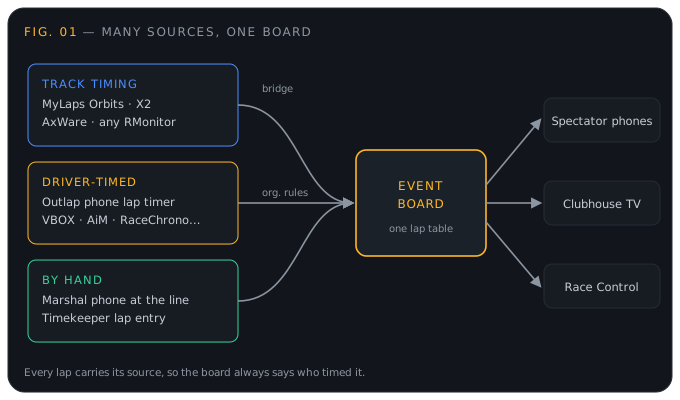
The thing that makes this workable is that every lap on the board knows where it came from. A transponder lap is labelled track timing; a phone lap says phone lap timer; a logger lap says VBOX, AiM and so on. Nobody has to guess whether a time is official.
For organisers
One place to run the day
Open your event and you’ll see a Live timing card. From there, Open Race Control takes you to a single page with everything you need on the day:
- session controls: go live, end, next, start a new session
- the board itself
- manual lap entry
- phone-timer approvals
- timing hardware and the transponder list
- corrections, with an audit trail
On a phone, a bottom bar switches between those sections, so you can run a session from the pit wall without a laptop.
Connecting your track timing
If you have transponder timing, go to Race Control ▸ Timing ▸ Connect timing. It walks you through five steps:
- Turn on the RMonitor (or equivalent) output in your timing software.
- Download the Outlap timing bridge from the page.
- Create an API key with the
timing:writescope. - Copy the command, which comes pre-filled with your event and key.
- Run it on the timing PC.
The bridge is a single Node script with no dependencies. (Full reference lives at docs.outlap.xyz.) The command looks like this:
node bridge.mjs --event <eventId> --key <apiKey> --host 127.0.0.1 --port 50000 --vendor orbitsWhere to switch the feed on, for each system:
| System | Where | --vendor |
|---|---|---|
| MyLaps Orbits | Tools ▸ Options ▸ Interfaces ▸ enable RMonitor output | orbits |
| MyLaps Trackside / X2 | Settings ▸ Outputs ▸ RMonitor / results relay | trackside |
| AxWare (autocross) | Setup ▸ Network ▸ Monitor output | axware |
| Any RMonitor relay | Point --host and --port at the relay | rmonitor |
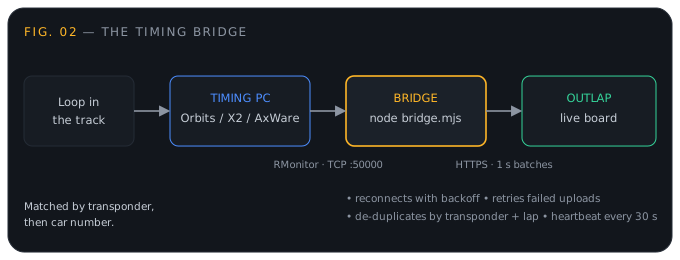
A few things the bridge does so you don’t have to think about them:
- It reconnects with backoff if the timing system drops, and retries uploads, so a Wi-Fi blip doesn’t lose laps.
- Duplicate packets are ignored, keyed on transponder plus lap number.
- It sends a heartbeat every 30 seconds, so Race Control can show the feed as live or stale.
Do a dry run before race day. The bridge can replay a captured file, and you should see laps land on the Timing tab with the live feed panel turning green:
node bridge.mjs --event <eventId> --key <apiKey> --file sample-rmonitor.txt --replayNo live link at the circuit? Use Import timing in Race Control’s lap entry and load the results CSV after each session. Column names are recognised automatically and you confirm which driver is which.
Transponders and numbers
Laps are matched to drivers by transponder first, then car number. The list lives in Race Control’s new Timing tab, and event organisers can edit it, not only club admins.
You usually won’t be typing it all in. Drivers can save their own transponder and race number in their garage, and those are copied onto every event they enter. On the day you only need to add hire units. A lap from a transponder that isn’t matched is still recorded, so you can assign it afterwards rather than losing it.
Deciding what driver-timed laps mean
Once drivers can time themselves, you need a rule for what that does to your board. In Race Control, under phone timing, pick one of three:
- Straight onto the board. Laps appear as they arrive, marked as driver-timed.
- I approve each lap. Driver-timed laps wait in a queue, hidden from the board, until you approve or reject them. There’s an Approve all button for when the queue builds up.
- Off. Driver-timed laps stay in the driver’s own history and never reach the board.
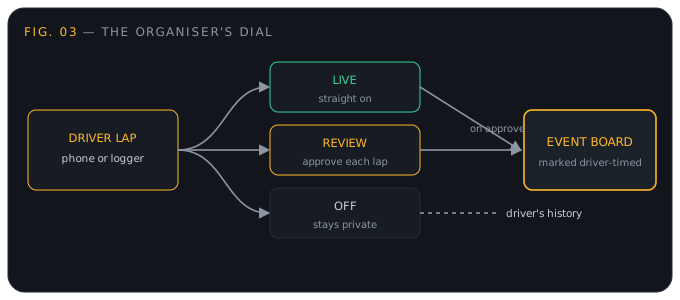
If you run a competitive day with prize money on the line, use review. For a relaxed track day where everyone’s just curious how they compare, live is fine and saves you a job. Only drivers who are entered in the event can send laps to it either way.
There’s a QR code and copy-link in the same panel. Put it on the sign-on sheet and the drivers’ briefing slide.
Putting it on a screen
Open /live/<event>/tv for Screen mode. It’s an always-dark board that fits whatever display you give it, pages through long fields automatically, flashes new laps as they come in, and carries a QR code so people can follow along on their own phones. Point a laptop at the clubhouse TV and you’re done.
For drivers
Time yourself with your phone
Open Drive ▸ Lap timer. If you’re entered in an event on the day, it picks that event for you; otherwise pick it from the list, or scan the organiser’s QR code. Mount the phone, press start, drive.
You don’t need to mark the start/finish line:
- If Outlap knows the circuit, it uses the circuit’s line.
- If it doesn’t, it places a line where you first get up to speed and confirms it the moment you come back round. The first lap still counts.
- After a clean session, the line is saved back to the circuit.
What the new lap engine does
Under the hood the lap timer was rebuilt. It replaces the old equal-thirds sectors and the elapsed-time “delta” with the things a dedicated lap timer gives you:
- Interpolated crossings. Lap times come from where the line was crossed between GPS fixes, not from whichever fix came first.
- Real sectors. Split lines are laid on your first lap and reused every lap, so sector times compare like for like.
- Delta by position. It compares where you are right now with where you were at the same spot on your best lap.
- Predicted lap. Your best lap plus the current delta.
- Delta-V. Your speed now against your speed at this point on your best lap.
- Ideal lap. The sum of your best sectors.
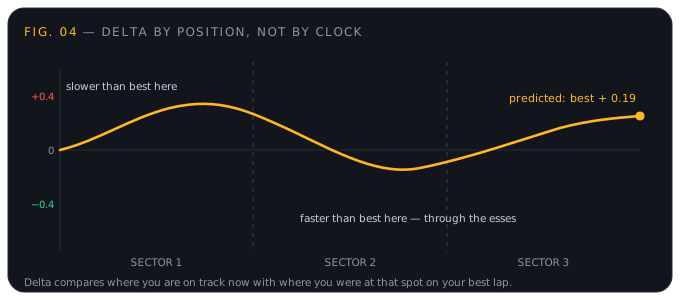
Illustrative trace, not real data. The reason delta by position matters: if you compared elapsed time or distance, a small line change would make the number lurch. Comparing at the same point on track means the number moves only when you actually gain or lose time.
The in-car display shows Delta-V lights, live delta, predicted, best and ideal laps, sector flashes, and the GPS source with its rate and accuracy.
Better GPS: RaceBox
A phone’s GPS is around 1 Hz. If you have a RaceBox Mini, Mini S or Micro, you can pair it over Bluetooth and the lap timer reads 25 Hz GNSS instead. It uses Web Bluetooth, so you need Chrome or Edge (Android, Mac, Windows, ChromeOS). Safari on iPhone and iPad doesn’t support it.
After the session
Every lap keeps a GPS trace, and the session page gives you:
- a speed-coloured track map
- lap comparison by distance
- export to .vbo (for Circuit Tools), GPX and CSV
Already have a logger?
Go to /timing/import. Outlap reads Racelogic VBOX, AiM CSV, RaceChrono, TrackAddict, GPX and lap-list exports. It times laps itself from the GPS against the circuit’s start/finish line, so a 10 Hz logger is accurate to a few thousandths. Pick an event you’re entered in and the laps go on its board too, subject to the organiser’s setting above.
Where to find the export:
| Logger | Export |
|---|---|
| Racelogic VBOX | Copy the .vbo from the SD card, or in Circuit Tools: File ▸ Export ▸ VBO |
| AiM (Solo 2, MyChron, MXS…) | Race Studio 3 ▸ Analysis ▸ open session ▸ Export ▸ CSV, with GPS channels |
| RaceChrono | Session ▸ ⋮ ▸ Export ▸ CSV (v3) |
| TrackAddict | Sessions ▸ select ▸ Export ▸ CSV data |
| Garmin Catalyst | Garmin Connect ▸ activity ▸ ⚙ ▸ Export to GPX |
AiM’s native .xrk and .drk files are a closed format, so export CSV from Race Studio. Garmin’s .fit files: export GPX from Garmin Connect instead.
For spectators
The board is a plain web page. No app, no sign-in, and it works signed out. Lap times, gaps and sectors update as they happen. Each lap shows where it was timed, so a driver’s own phone time reads differently from a transponder time.
(There was a bug where signed-out visitors couldn’t load the public board at all. It asked for lap columns anonymous users can’t read. That’s fixed: names now come from a dedicated read-safe view.)
A suggested setup for race day
- A week out: make sure drivers have saved their transponder and number in their garage. Choose live or review for phone timing.
- Day before: run the bridge with
--replayto confirm your event ID and key work. - Morning: start the bridge on the timing PC. Check the live feed panel is green. Put the QR code on the sign-on desk.
- During sessions: keep Race Control open on a phone. Approve any phone laps in the queue. Put Screen mode on the clubhouse TV.
- After: use Race Control’s corrections and audit trail to fix anything odd, then export results.
What’s on the list
The supported systems page, /timing/works-with, is the canonical list and will grow. If you use Alge, TAG Heuer, Westhold or Speedhive exports, send us a sample file through the contact page and we’ll add it.
If you run an event, the quickest way to see all of this is to open Race Control for a test event and press through the Connect timing steps. If you’re a driver, enter an event, pick it in the lap timer, and go set a lap.